Properties

In this tutorial, we'll explore the properties and behavior of filters in dReveal. Filters play a crucial role in refining the data you present in your reports. Let's dive in!
Once you've created a filter in the model designer, you can access its properties. Filters consist of various sections that report builders can define.
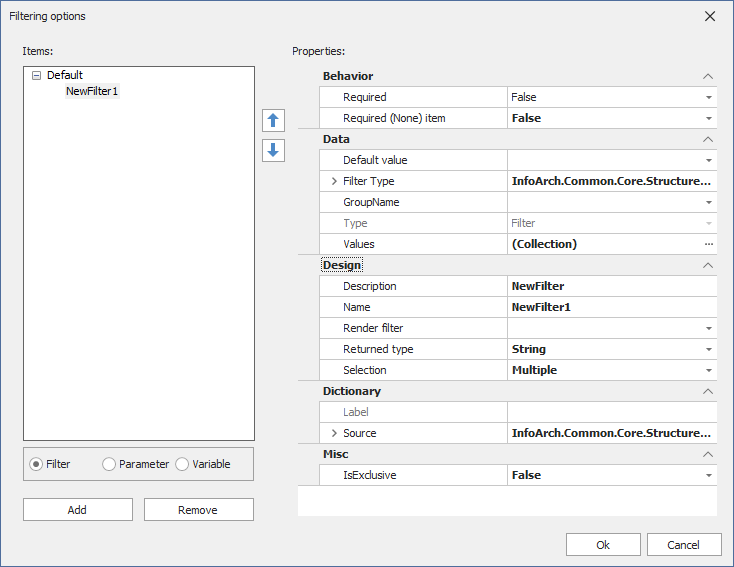
Behavior

Required
The 'Required' property makes the filter mandatory for end-users. This means they must select a value from the filter before executing the report.
Required (None) Item
Enabling this property automatically adds a 'None' item to the list of filter elements.
Data

Default Value
When a filter is displayed to end-users, you can pre-configure an element as the default value. We'll cover this in more detail later in the tutorial, where we introduce an object called 'Variable' for this purpose.
Filter Type
The filter type is essential for SQL and hierarchical filters. Here, you define the source of the filter's values, specifying:
- View Name
- Value Member
- Display Member
You'll need to define a dRView that displays these items, a display value, and a value member. The value member is the data dReveal engine will use for calculations.
Group Name
Groups act as containers for objects in dReveal. They're useful for organizing grid columns and filter containers, providing end-users with a better understanding of the criteria.
Design

Description
The description is the label that end-users will see when executing the report.
Name
The name represents the filter prompt during development, serving as a reference at design time. Note that the label end-users see during runtime may differ from this name.
Render Value
This property allows you to show or hide the filter from end-users during execution. We'll explore this further as we introduce a new object called 'Variable' for dynamic control.
Returned Type
The 'Returned Type' property aligns with the 'Value Member' in the filter type section. It defines the data type of the filter value, such as String, Numeric, Date, or Boolean. Different types offer different filtering options, like 'greater than' for numerics and dates or 'contains' for strings.
Selection
This property enables end-users to select one or multiple elements from filter prompts, depending on your reporting needs.
Dictionary

The 'Dictionary' property allows you to assign labels to the filter based on dR View results. For example, if you have a table that provides labels, you can use this feature to apply terminology from your application dynamically.
Please note that dictionaries will be covered in a separate section of this tutorial.
That concludes our overview of dReveal filter properties. In the following sections, we'll delve deeper into each topic for a comprehensive understanding.